

Insty Drum Antenna/Modem Setup Instructions
IS YOUR ROUTER SETUP?
These instructions assume you have a router configured. If you purchased the Insty Router, please configure before setting up the Antenna.
Large print instructions can be found on our website at INSTYCONNECT.COM under the Help -> Install Guides menu.
Page 1
We recommend assembling and configuring the system on a table or desk before you permanently install any of the components. Follow the steps in this document to ensure you have internet connectivity, and then plan your install.
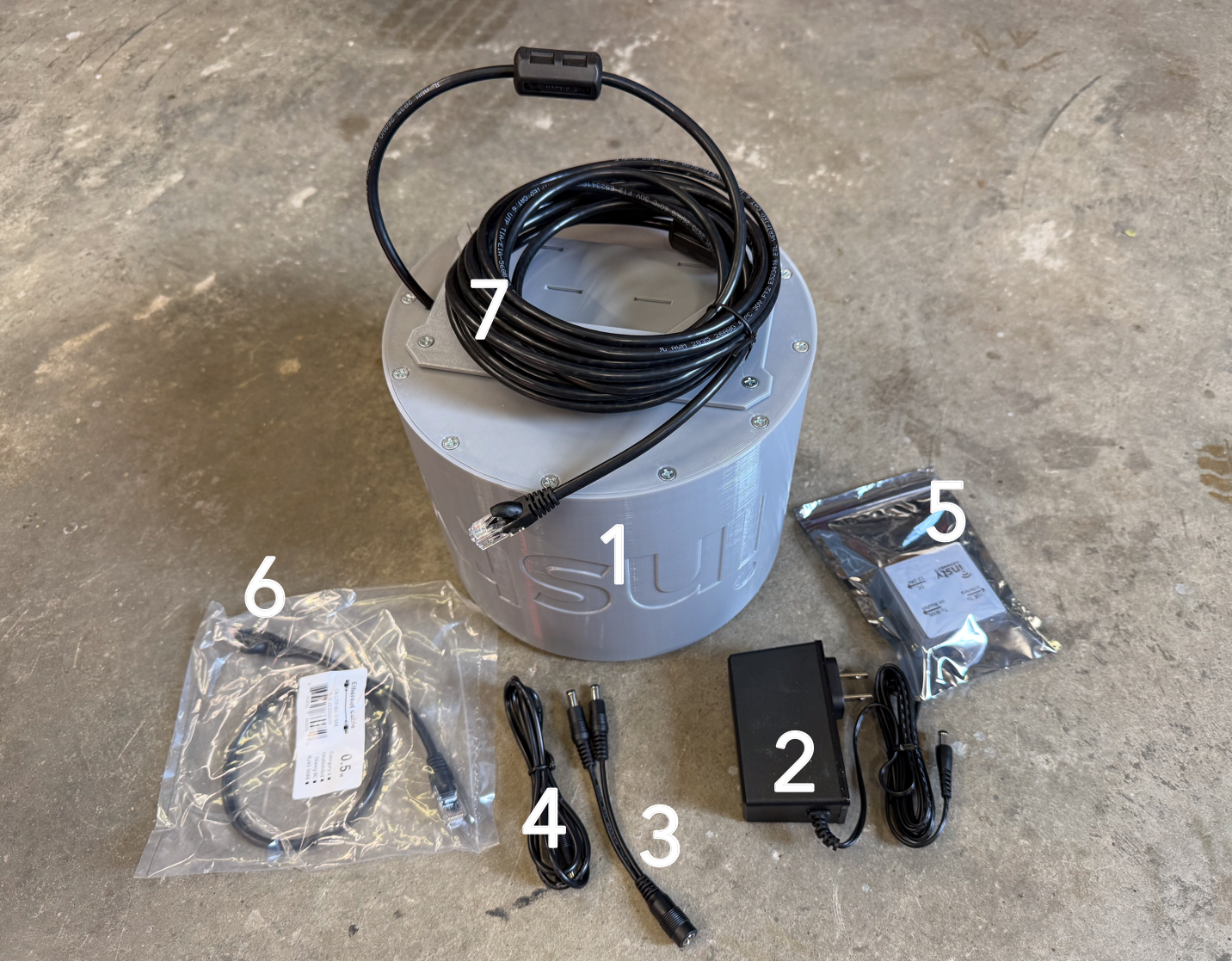
Unpack all components
- Antenna Enclosure
- AC Power Adapter
- DC Power Y Cable
- DC Direct Wire 12v Cable
- POE Injector
- 1.5ft Ethernet Cable
- 15/30ft Ethernet Cable
Power Antenna
You can use either the AC Power adapter, or the direct wire cable for power to the injector. If using the direct wire, the RED is (+) 12v positive, Black is (-) 12v negative.
The Y cable can be used with the Insty Router to power both the router and the Antenna from the Antenna AC Adapter or direct wire cable at 12V DC. NOTE - Insty Router is 12v DC only! Do not put 24v of DC power into the router! Antenna can accept 12-24v.
Plug DC power into the injector port labeled DC 12-24v
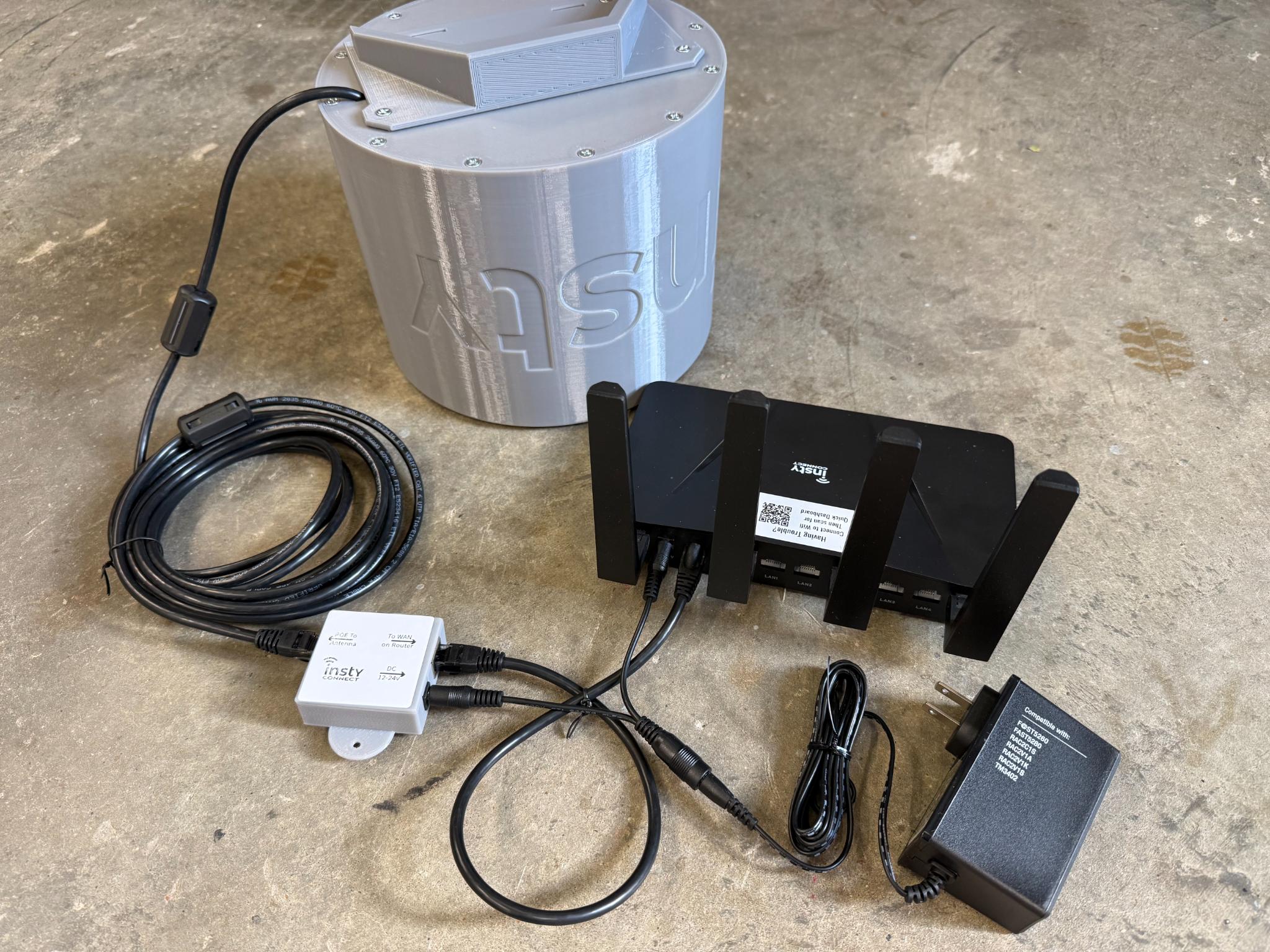
Plug 15/30ft long ethernet cable into the injector port marked "POE to Antenna"
Plug the short 1.5ft ethernet cable into the injector port marked "To WAN on Router" to your router's WAN port.
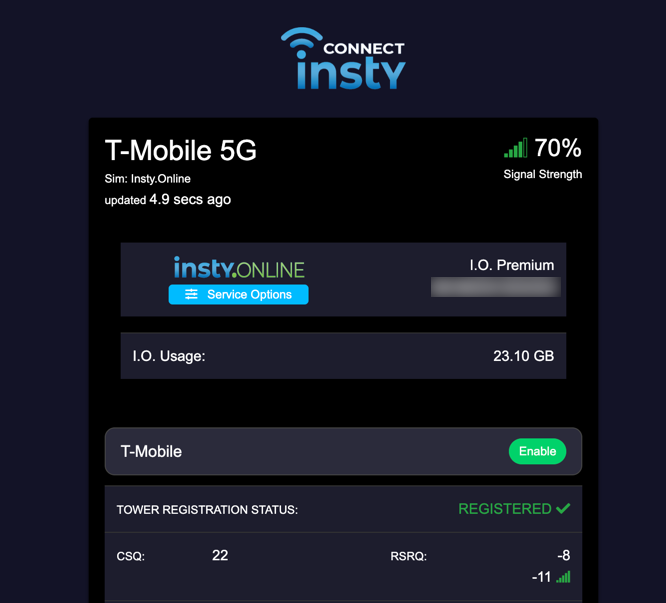
Open the Antenna Dashboard
Open your phone, tablet or computer browser and type: http://192.168.225.1
** You must include the http:// - (not https) **
This screen will show you the signal and if you're registered to a cell network.
You may want to bookmark this page so you can quickly see the antenna signal and status of your Insty Antenna.
Page 2
Verify Connection
Check the dashboard above to verify that you have signal. If it's showing signal and it's registered to the tower, you can check your devices for internet. If you have internet, you're all done!
The SIM Slots and Changing Providers
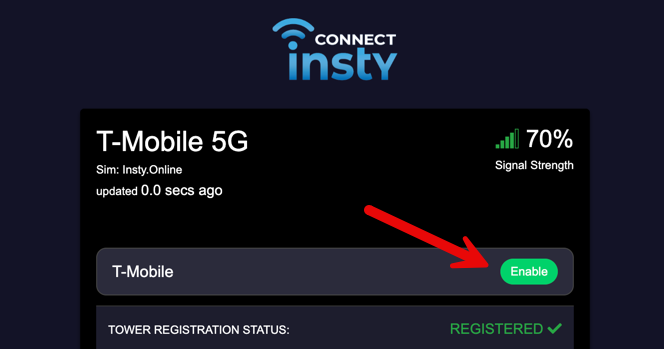
If you purchased your system with a multi-network data plan, you can change providers using the green "enable" button next to the provider name on the antenna dashboard.
Do not use the "click to switch SIM slot" button below unless directed by Insty Support.
Insty data plan users do not need access to the SIM slots. If you need access the SIM slots or need to change SIM card settings, please see companion guide.
Enabling On-Demand Internet
If you're using our "Hot Standby" or "On Demand Plan", you can activate your service on-demand through the antenna dashboard by clicking the "Enable Now" button.
When active, the system will show "Standby Plan Active".
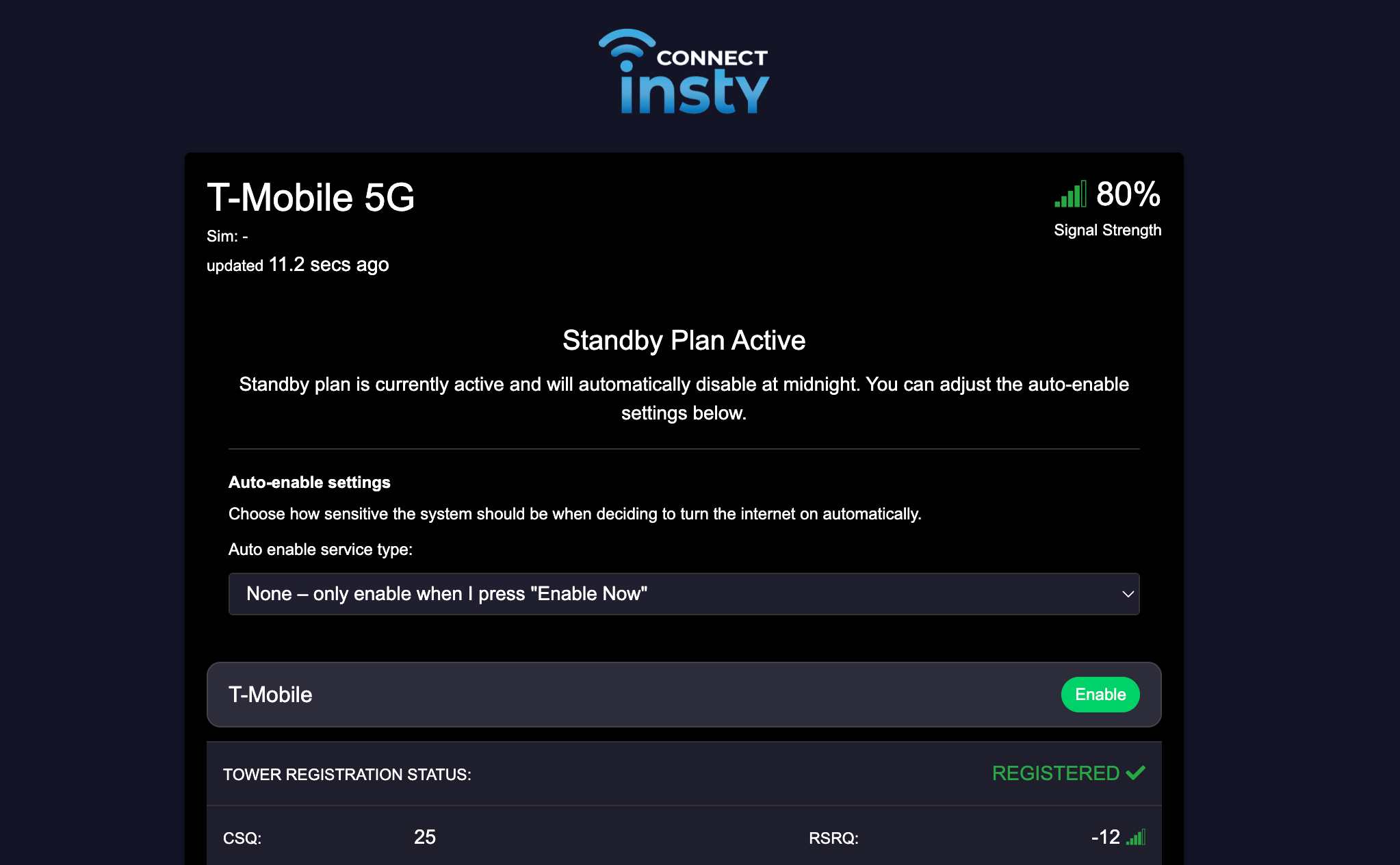
You can also change if you want the system to automatically Enable from internet usage. In these settings, if the system senses that internet is wanted, it will automatically enable. Daily charges will apply - so please double check your settings to ensure proper usage.
Also, anyone having access to your secure wifi network will be able to enable the internet from any device.
Antenna Software Updates
The Insty Connect Antenna will automatically download needed software updates when it has an internet connection.
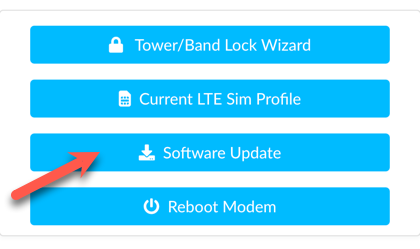
You can manually check and download updates by clicking the "Software Update" button. After the update is run, the modem will automatically reboot.
Page 3
Troubleshooting
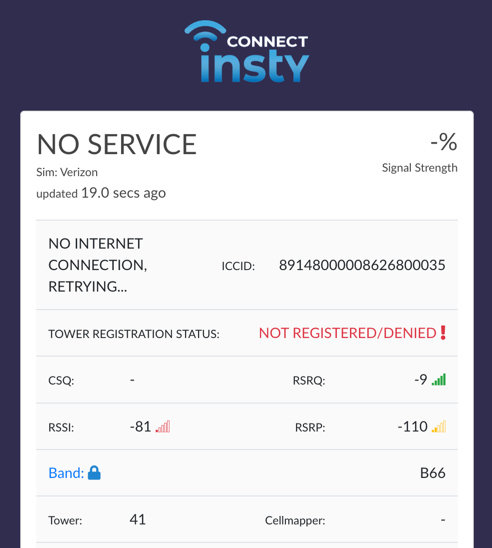
NOT REGISTERED/DENIED:
You are being denied by the tower. Check that your SIM card is active. Insty.Online customers: make sure your SIM slot is set correctly. Most Insty.Online plans utilize SIM slot #1. Try changing the SIM slot to #1.
NO SERVICE:
Check antenna wires to make sure they are connected and snug. Make sure there is service in your area. Make sure your antenna is outside and up high.
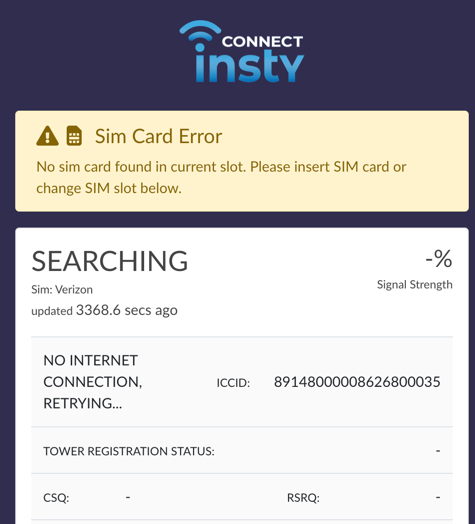
SIM CARD ERROR:
Check that the SIM cards are seated properly. Please see companion guide for antenna dissasembly and accessing SIM cards from the modem.
OTHER CONNECTIVITY ISSUES:
If you have Insty.Online and do not have a connection to the internet, please check your signal in the dashboard to make sure you are registered on a tower.
If you are registered on a tower, please send in a message to support to have us verify your service is active and online.
BRING YOUR OWN SIM?
If BYOS and have no internet, check your SIM settings to make sure the correct provider and/or APN is being used.
If you are registered on the tower and have no internet, you will need to reach out to your provider to confirm your service is active and online.
If you have any other issues, please check our knowledgebase to help with any issues that may arise:
https://instyconnect.com/troubleshooting
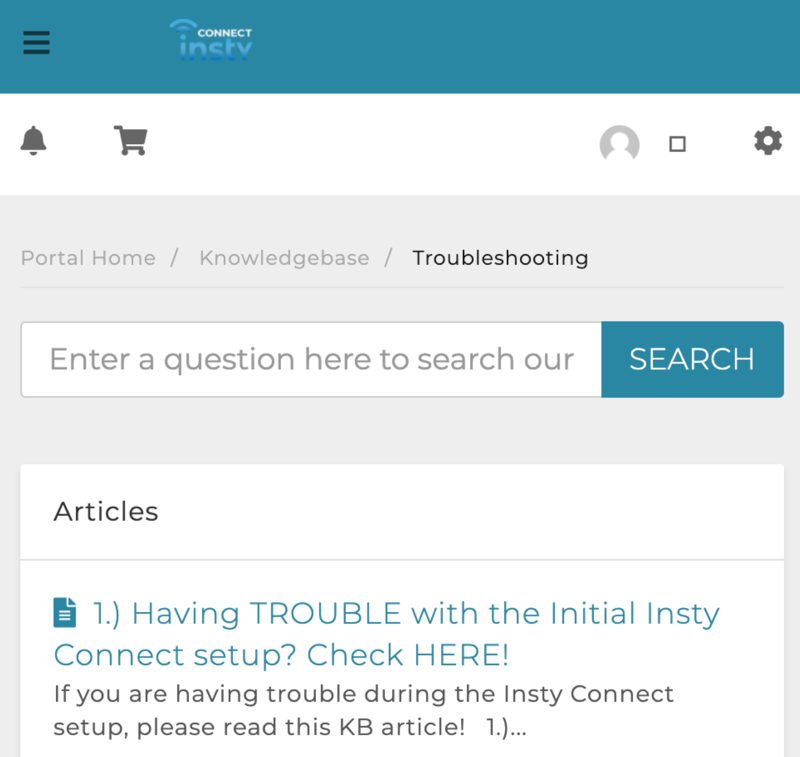
Our searchable Knowledgebase
Contact Us:
To contact us, visit the main website: https://instyconnect.com
In the menu, click Help -> Contact Us.
From our family to yours.
Thank you so much for your purchase of an Insty Connect! You are supporting a family-run small business and we really appreciate it! We hope you love this device as much as we’ve loved putting it together for you.

Page 4